How to Translate an SRT File Without Breaking Timecodes
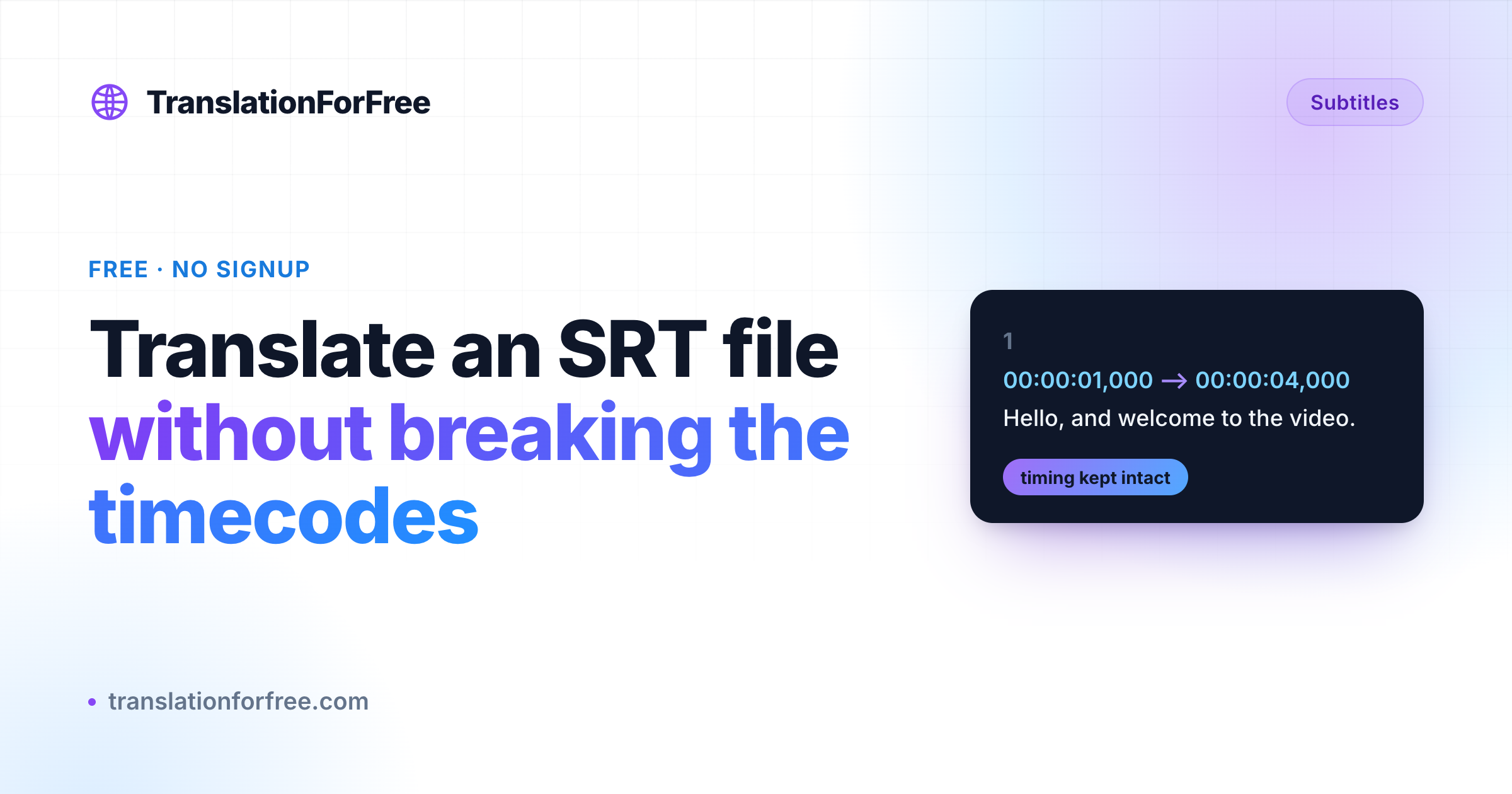
To translate an SRT file without breaking the timecodes, upload it to the Subtitle Translator rather than pasting the text into a general translator. It translates only the caption lines and hands back a working SRT with every timestamp and line number intact. Free, no signup.
Most people try to translate a subtitle file the obvious way. They open the SRT, copy the text, paste it into Google Translate or a chatbot, and paste the result back. It almost works. Then they load the file into a player and the captions are off: the line numbers are gone, the timecodes got translated into something the player can’t read, or only the first half of the file came back.
The problem is that an SRT is not just text. It is text wrapped around timing, and the timing is the part you cannot afford to lose. Here is how to translate one and get a real, working subtitle file back.
What is inside an SRT file
If you open an SRT in a text editor, you will see a repeating block:
1
00:00:01,000 --> 00:00:04,000
Hello, and welcome to the video.

2
00:00:04,500 --> 00:00:07,200
Today we are going to keep this simple.
Each block has three parts: a number, a timecode line that says when the caption appears and disappears, and the actual subtitle text. A general-purpose translator does not know that the numbers and timecodes are off limits. So it translates everything, or it reflows the text and the blocks stop lining up. (If you want the longer version of how SRT differs from VTT and other formats, we wrote that up in SRT vs VTT: Subtitle Formats Explained.)
Translate only the text, keep the timing
The fix is to translate the subtitle text and leave the numbers and timecodes exactly as they are. That is what the Subtitle Translator does.
- Open the Subtitle Translator.
- Upload your
.srtfile, or paste its contents. - Pick the language you want to translate into.
- Translate, then download the new file.
What comes back is a normal SRT. Same numbers, same timecodes, same number of blocks. Only the lines of dialogue have changed language. You can load it straight into VLC, YouTube, Premiere, or any player and the captions show up on cue.
There is no account to create and no email wall. The file is translated and you download it.
A few things worth checking
Machine translation is good now, but it is not a human translator. A short review pass is always worth the few minutes.
- Read it once in the target language. Names, slang, and jokes are where machine translation slips. Fix the handful of lines that read oddly.
- Watch the line length. Some languages run longer than English. German and Tamil, for example, can push a one-line caption onto two lines. If a caption now feels too long to read in the time it is on screen, shorten it.
- Keep your source file. Translate from the original, not from a translation of a translation. Each hop loses a little meaning.
Common problems and how to fix them
The player shows no captions after translating. The file is probably saved with the wrong extension or encoding. Make sure it ends in .srt and is saved as UTF-8.
The timing is fine but slightly early or late on every line. That is not a translation problem, it is a sync problem, and it is a quick fix. See How to Fix Out-of-Sync Subtitles.
You only need the words, not the captions. If you want a plain transcript instead of a subtitle file, strip the timecodes with the SRT to TXT tool first, then translate the text.
Your file is a VTT, not an SRT. Convert it first with the SRT and VTT Converter, translate, then convert back if you need to.
That is the whole process. Translate the text, keep the timing, do a quick read-through, and you have a working subtitle file in another language without paying for anything or signing up.