How to Fix Out-of-Sync Subtitles
To fix out-of-sync subtitles, shift the whole file by however far off it is: load the SRT into the Subtitle Timing Shifter, enter the offset in seconds, and download the corrected file. That covers subtitles that run consistently early or late, which is most of them.
You found subtitles for your video, loaded them up, and the timing is wrong. The words show up two seconds before anyone speaks, or they lag behind the audio the whole way through. The text is correct. It is just landing at the wrong moment.
Most of the time this is a simple fix. Before you delete the file and hunt for another one, it helps to know which kind of sync problem you actually have, because one kind takes ten seconds to fix and the other needs a different approach.
Two kinds of sync problems
A constant offset. Every caption is off by the same amount. The first line is two seconds early, the last line is two seconds early, and so is everything in between. This is the common one, and it is the easy one. You shift the whole file.
Drift. The captions start out roughly right and slowly get further off as the video plays. By the end they might be ten seconds out. This usually means the subtitle file was made for a video with a different frame rate, often the 23.976 versus 25 frames-per-second mismatch. A simple shift will not fix drift, and we will come back to that below.
If the gap is the same at the start and the end of the video, you have an offset. If it gets worse over time, you have drift.
Fixing a constant offset
When the whole file is off by a fixed amount, you move every timecode by that amount. The Subtitle Timing Shifter does exactly this.

- Open the Subtitle Timing Shifter.
- Upload your
.srtfile. - Enter how far to move the timing. Use a negative number if the subtitles are late and need to come earlier, a positive number if they are early and need to wait.
- Download the shifted file.
You can pick a quick preset or type an exact value. A negative number pulls the subtitles earlier, a positive one pushes them later, and the tool tells you in plain words what the shift will do.
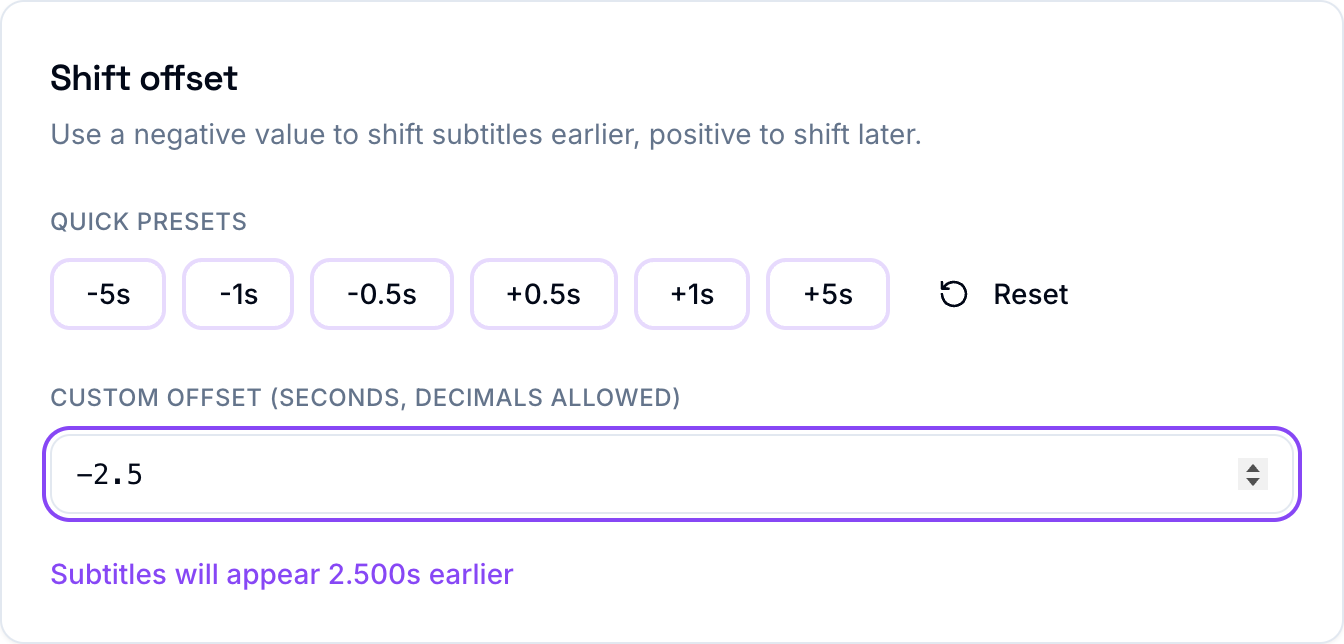
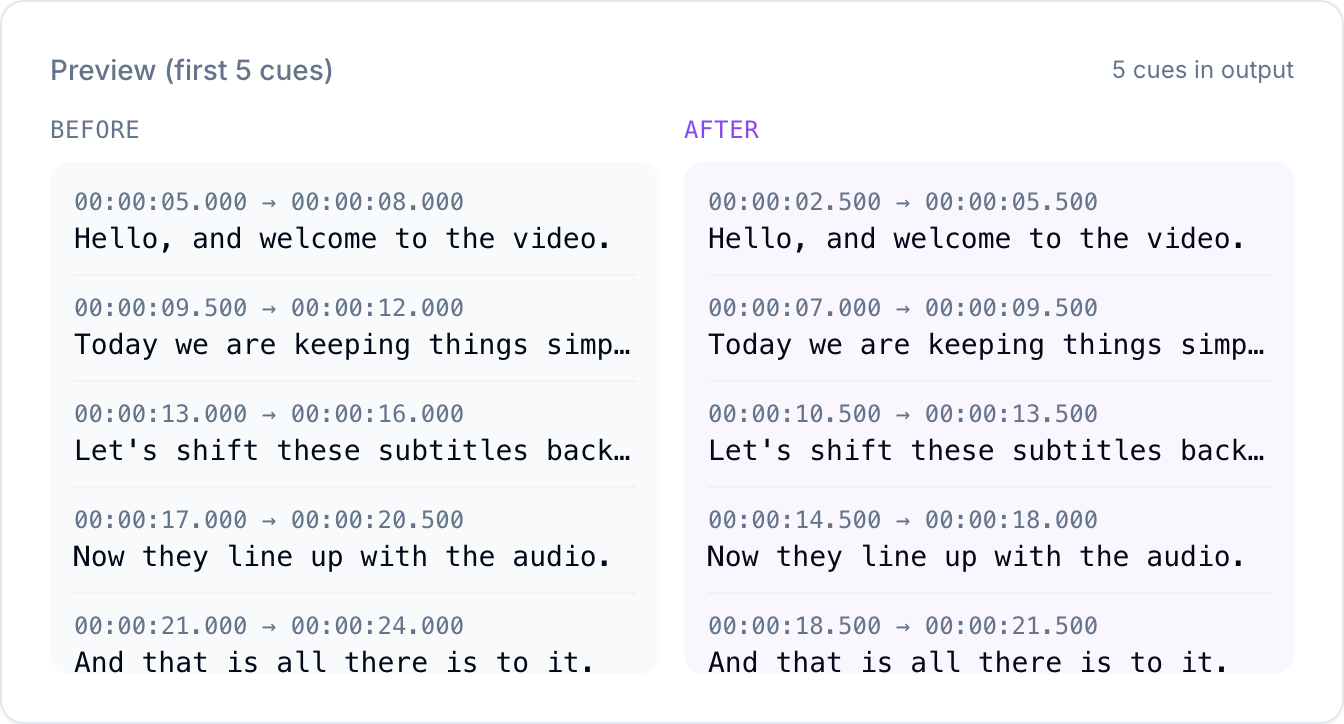
Every timecode moves together, so the captions stay in step with each other. Only their position against the video changes. A before and after preview updates as you type, so you can check the new timing before you download anything.
How to find the right offset
You do not have to guess. Play the video and watch for the first clear line of dialogue. Note the time the person actually starts speaking. Open the SRT and look at the timecode on that same line. The difference between the two is your offset.
For example, if the speaker starts at 00:00:07 but the subtitle is set to appear at 00:00:09, the subtitle is two seconds late. Shift by -2 seconds and check again. One or two small adjustments will get it exact.
When a shift will not be enough
If you have drift, shifting moves the whole file but the captions still pull apart over time. That is a frame rate problem, not an offset problem. Fixing it properly means stretching the timing by a ratio rather than moving it by a fixed amount, which a desktop tool like Subtitle Edit or Aegisub handles well. If the file is drifting, that is the route to take.
It is also worth ruling out the simple stuff. Make sure the subtitle file actually matches the video you are watching and not a different cut or release of it. A file made for the extended version of a film will never line up with the theatrical version, no matter how you shift it.
For a constant offset, though, this is a quick job. Find the gap on one known line, shift the file by that amount, and the captions snap back into place. The full set of subtitle tools, all free and with no signup, is on the TranslationForFree home page.