Drop your PowerPoint file here, or click to browse
.pptx, up to 25 MB
Your deck is never stored. It is held in memory to do the work, then dropped.
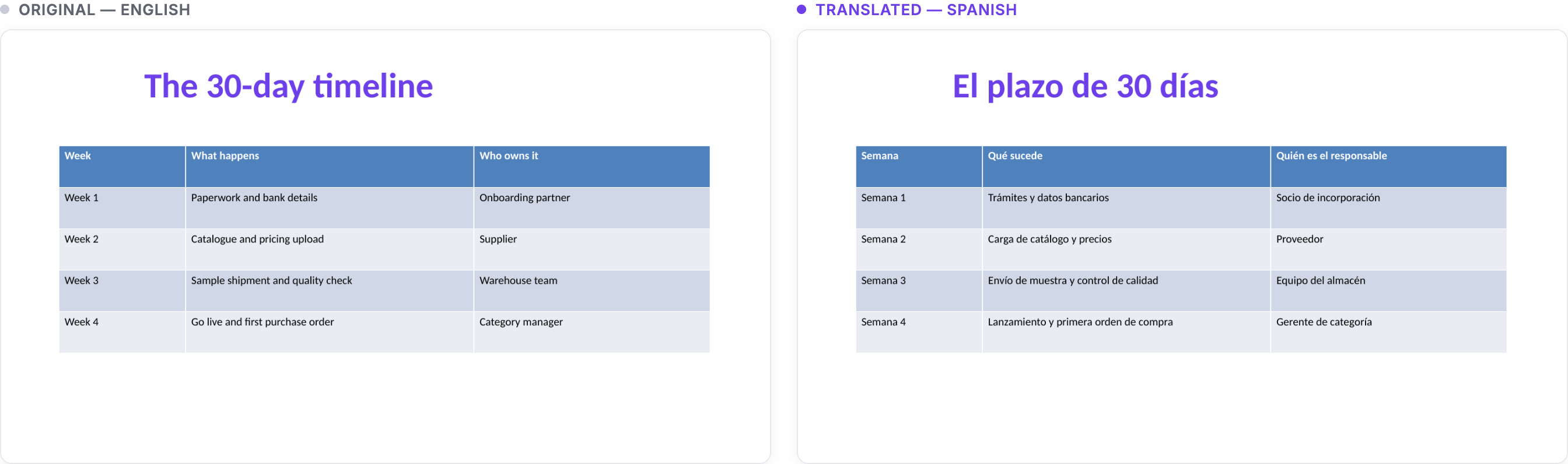
See it for yourself: the same slide, before and after
Not a mockup. Both sides are the real .pptx files rendered by LibreOffice, showing slide 3 of a sample deck. The table is the hardest thing to keep intact, so it is the most honest thing to show: same colors, same column widths, same row heights, only the language changed.
How the PowerPoint translator works
A .pptx file is a package of XML where the words live separately from the design. Instead of converting your deck to another format and back (which wrecks layouts), this tool translates the text in place and rebuilds the file with every font, color, theme, table, image, and transition exactly where it was. Bold and colored words are repositioned to fit the grammar of the target language, so slides read naturally instead of word-for-word. Text boxes set to shrink-on-overflow are told to re-fit themselves, and when a translation runs long in a fixed-size box, the font is automatically reduced just enough to keep the text inside (never below 60% of the original size). The tool tells you exactly which slides it adjusted.
What gets translated
- Slide titles, bullets, and text boxes
- Tables (every cell) and grouped shapes
- Speaker notes under each slide
What stays untouched
- All fonts, colors, sizes, themes, and slide layouts
- Images, videos, animations, and transitions
- URLs, email addresses, numbers, and slide-number fields
- SmartArt and chart text (kept as-is in this version)
Known limitations (and how to handle them)
We would rather be upfront than surprise you. This tool is young and we improve it constantly, often based on feedback from real presentations. Here is where it can fall short today:
- Text overflow. Some languages simply need more room than English, and a slide cannot grow. The tool shrinks the font automatically where it safely can and lists every slide it touched, but the shrink is an estimate, not a pixel-perfect measurement. If you spot text spilling out of a box in the translated file, the fix is simple: select that text in PowerPoint and reduce the font size a step or two. The result notes above the download button point you to the slides most likely to need it.
- SmartArt and chart text. Text inside SmartArt diagrams and charts is not translated yet. It stays exactly as it was, so nothing breaks, but you may need to edit those pieces by hand. Support for them is on our list.
- Slide masters and layouts. Template placeholder text (the kind only visible in the master editor) is intentionally left alone.
These limits shrink with every release. The overflow handling in the current version, for example, came directly from testing with real presentations, and that is how the remaining gaps will get closed too.
Tips for the best translation
- Add a glossary for brand names and product terms so they stay consistent
- Pick a specific target variant (e.g. Latin American vs European Spanish) for the right tone
- Leave source language on Auto-detect if you are not sure
- Save macro-enabled decks (.pptm) as a normal
.pptxbefore uploading - After downloading, skim the slides — languages like German run longer, and a tight text box may need one font-size nudge
Frequently asked questions
Will my slide layout move when I translate the deck?
No. The text is replaced inside the .pptx package rather than converted to another format and back, so every font, color, theme, slide layout, table, image, video, animation, and transition stays exactly where it was.
What happens when the translation is longer than the text box?
Boxes set to shrink on overflow are told to re-fit themselves, and where a translation runs long in a fixed-size box the font is reduced just enough to keep the text inside, never below 60% of the original size. The tool then tells you exactly which slides it adjusted so you can check them.
Are speaker notes translated too?
Yes. Slide titles, bullets, text boxes, every table cell, grouped shapes, and the speaker notes under each slide are all translated.
Is text inside SmartArt and charts translated?
Not yet. SmartArt diagrams and chart text are left exactly as they were, so nothing breaks, but you may need to edit those pieces by hand. Support for them is on the list.
How big a presentation can I upload, and what about .pptm?
Up to 25 MB per .pptx file, which is roomier than the document tools because decks carry images. Save macro-enabled .pptm decks as a normal .pptx before uploading.
Is it free, and are my decks stored?
Free, with no account and no signup. Your deck is processed in memory to produce the translation and is not kept afterwards, so there is no stored copy to delete. The text is sent to the Gemini API from Google to be translated, on the paid tier, where the terms state prompts and responses are not used to improve Google products.