How to Stop a Translator From Translating Your Brand Name
To stop a translator from translating your brand name, give it a glossary: a short list of terms to leave alone or always render the same way. Every translation tool on this site accepts one, so Acme Cloud stays Acme Cloud in all 50+ languages instead of coming back as Nube Acme.
You translate a page into Spanish and your product, “Acme Cloud,” comes back as “Nube Acme.” Or worse, your key term is translated one way in the heading, a different way in the body, and a third way on the button. The translation is technically correct, but it reads like nobody was paying attention, and for a brand that is the one thing you cannot afford.
This is one of the most common frustrations with free translators, and it has a clean fix that most of them do not offer: a glossary.
Why translators butcher brand names
A translator does not know what a brand name is. To it, “Acme Cloud” is just two ordinary words, so it happily translates them. It does not know that “Dashboard” is a specific feature you always call by one name, so it picks whatever fits each sentence, and across a long page that means the same term shows up three different ways.
Google Translate and the free tiers of most tools give you no way to say “leave this alone” or “always translate this term this way.” You get one pass, take it or leave it. The result is fine for reading a foreign article and not fine for anything with your name on it.
What you need is a glossary: a short list that tells the translator exactly how to handle specific terms.
What a glossary actually does
A glossary is a list of terms you control, one per line, written as source = target. It does two jobs at once:
- Keep a term unchanged. Put the same word on both sides, like
Acme Cloud = Acme Cloud, and the translator leaves it exactly as it is, everywhere it appears. This is how you protect brand names, product names, and people’s names. - Force one consistent translation. Put your preferred wording on the right, like
Dashboard = Tablero, and every single instance of that term uses it. No more three-ways-on-one-page.
That is the whole idea. You are not translating the glossary by hand, you are giving the translator a set of rules it follows for the specific terms that matter.
Doing it for free
The HTML Translator has this built in, so you can protect your terms while translating an HTML file, a web page, or an email template. After you upload your file, open the Optional: glossary / do-not-translate terms panel and type your rules, one per line.
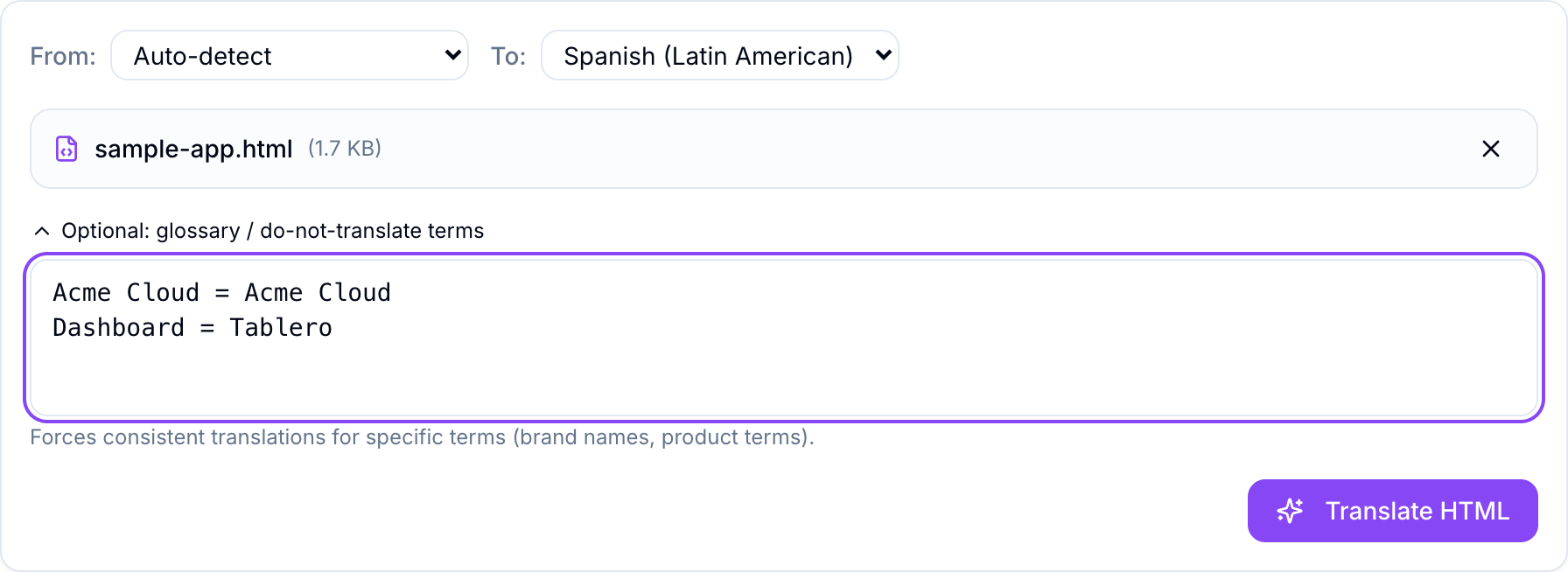
Here we are translating a product release page into Spanish with two rules:
Acme Cloud = Acme Cloudso the brand name is never touched.Dashboard = Tableroso that feature is always called “Tablero,” not left to chance.
Click Translate and you get the original and the result side by side. Look at what the glossary did.
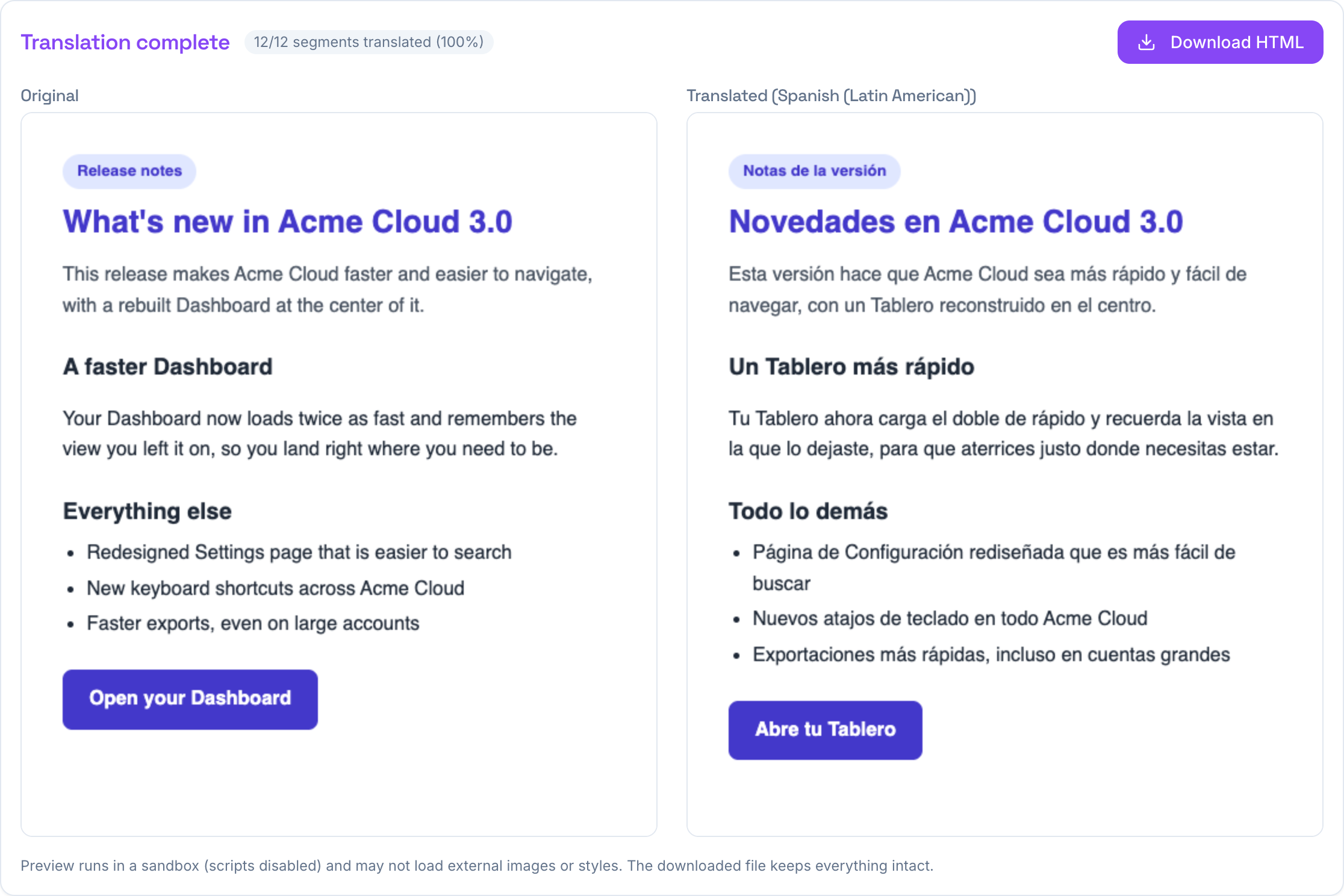
“Acme Cloud” survived in the heading, the intro, and the bullet list, exactly as written. “Dashboard” became “Tablero” every time it appeared, including on the button, so the feature has one consistent name across the whole page. Meanwhile everything not in the glossary was still translated naturally, so “Settings” became “Configuración” on its own. You get a fully translated page that still respects your terms.
What to put in your glossary
A good glossary is short. You are not listing every word, just the handful that a translator would otherwise get wrong. The usual candidates:
- Brand and product names. Your company, your app, your plan names. Pin them to themselves so they never move.
- Feature and UI labels. Anything you always call by one name, like Dashboard, Inbox, or Workspace, so the term stays consistent.
- People’s names and handles. These should almost never be translated.
- Taglines and slogans you have an approved translation for already. Put the approved version on the right.
- Codes, units, and identifiers that must stay literal.
A couple of practical notes. Write terms the way they appear in your text, since matching is on the term itself. Keep the list focused, because a giant glossary of common words can fight with natural phrasing. And when you only want to protect a name, the simplest rule is the same word on both sides.
Where this fits
Right now the glossary lives in the HTML Translator, which makes it the tool to reach for whenever your content is an HTML file: a web page, an exported article, or an email template. If you are new to translating HTML, the full walkthrough is in how to translate an HTML file without breaking the layout, and the email-specific version is in how to translate an HTML email template. If you just need a plain block of copy translated, the Text Translator handles that in one click.
For keeping your brand name and your key terms exactly right while you translate, though, the glossary is the whole trick. List the terms that matter, translate, done. Everything is free and needs no signup, and the rest of the tools are on the TranslationForFree home page.