How to Translate a TXT File and Keep Every Line Where It Was
To translate a TXT file and keep every line where it was, upload the whole file to the TXT File Translator instead of pasting its contents into a translator box. Every line break, blank line, indent, and line ending comes back exactly as it went in.
Plain text files look like the easy case. No fonts, no tables, no layout. Just words. So you paste the whole file into a translator, copy the result back, and then notice what happened: your line breaks are gone. The blank lines that separated sections got swallowed. The indented list is flat. What used to be a structured file is now one long paragraph in another language.
That matters more than it seems, because the structure of a .txt file usually is the format. A README, a changelog, song lyrics, an interview transcript, a script for a video, a legal notice for an app. In all of those, which line something sits on carries meaning. Lose the lines and you have not translated the file, you have replaced it with a different one.
Why translators flatten text files
Most translators treat your input as prose. They join lines into sentences, reflow the sentences into paragraphs, and give you back what they think a document should look like. That is helpful for a letter and destructive for anything structured.
There is a second, sneakier failure: skipped lines. Paste 200 lines into a chat-style tool and you often get 194 back, with no hint about which six vanished. On a file where line 37 has to stay line 37, that is not a small bug.
What you want is a tool that treats the line skeleton of the file as untouchable: translate what is on each line, and leave every line, blank line, and indent exactly where it was.
Translating the file
The TXT File Translator works line for line by design. The structure is preserved by construction, not by luck, so the output diffs cleanly against the original.
- Open the TXT File Translator.
- Drop your
.txtfile in, or click to browse for it. - Pick the language you want under To (leave From on Auto-detect if you are not sure).
- Click Translate File, compare the two panes, and download the result.

Once the file loads you see its contents right on the page, so you can confirm it read the file the way you expect before spending a translation on it.

When it finishes, you get the original and the translation side by side, plus a count of how many lines were translated, so a skipped line has nowhere to hide.
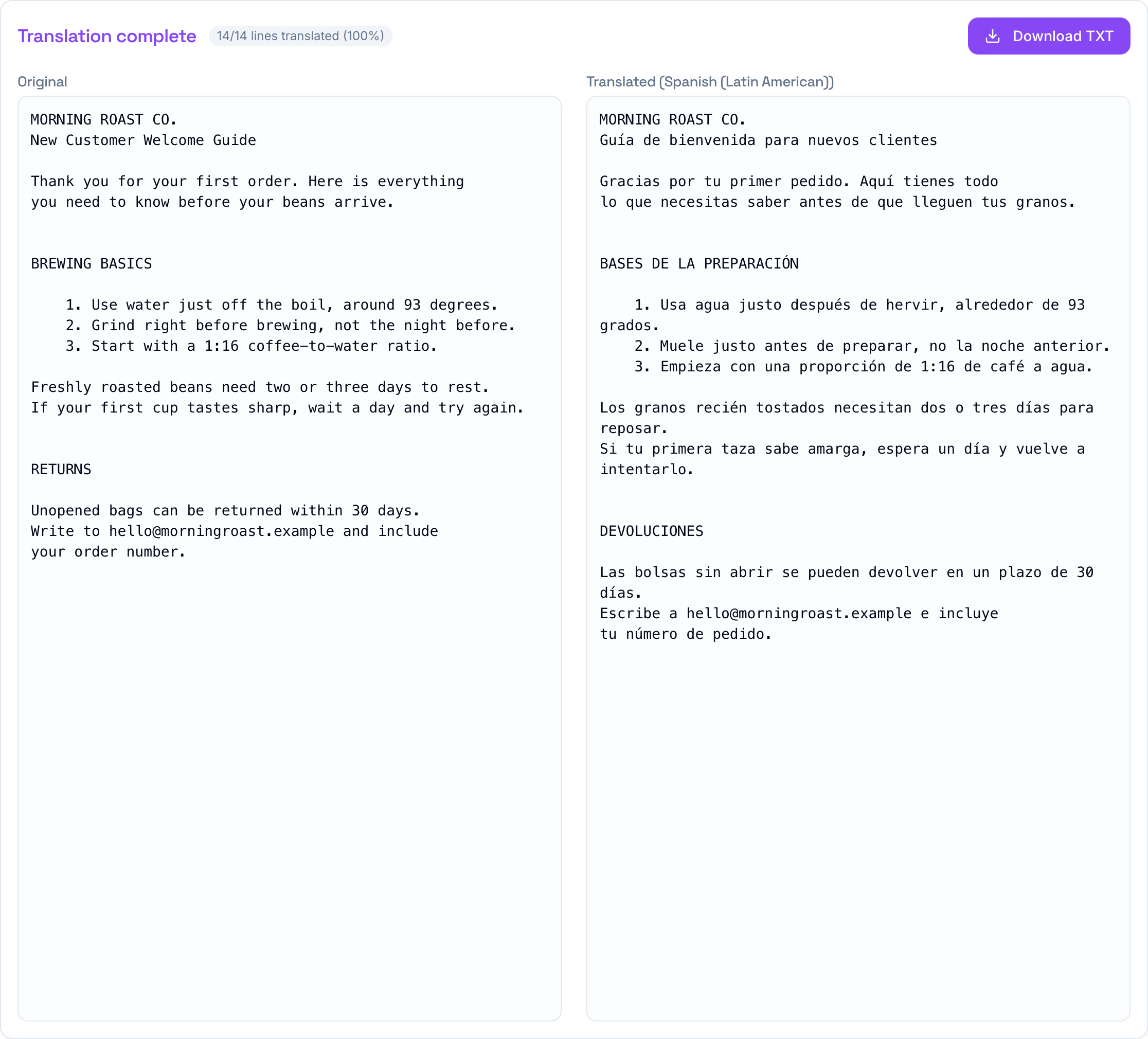
Look at what survived in that screenshot: the all-caps section headings are still headings on their own lines, the blank lines between sections are still there, the numbered list kept its indentation, and the email address came through untouched. The counter reads 14 of 14 lines, which is the point.
What stays exactly in place
- Line breaks and blank lines. Line 12 in the original is line 12 in the translation.
- Indentation and spacing at the start of lines, so lists and nested notes keep their shape.
- Line endings as they were, whether the file uses LF or CRLF, so nothing downstream chokes on it.
- URLs and email addresses, which are left as they are so they keep working.
That makes the output safe for files other software reads, and easy for a human to review, because you can scroll both versions in parallel and always know you are looking at the same spot.
Tips for a clean result
- Keep the glossary handy for names that must not change, like brands or people. One term per line, like
Morning Roast Co. = Morning Roast Co. - Pick a specific variant of your target language when tone matters. The Spanish options, for example, are separate for Latin America and Spain.
- Mind the size limit. Files up to 400 KB work, which is a few hundred pages of plain text. Bigger than that, split the file and translate the parts.
If your text lives inside a subtitle file, use the Subtitle Translator instead, since timing lines need their own handling, and we covered extracting plain text from subtitles in how to get text out of an SRT. For text with formatting around it, the Word and Excel translators keep that formatting exact.
For a plain .txt, though, it is the simplest tool on the site: upload, translate, download the same file in a new language. Free, no signup, like everything on the TranslationForFree home page.