Subtitles Into a Transcript: Which Output Format to Pick
One line per cue, paragraphs, or a single block: which shape you pick decides how usable the text is. Line-per-cue keeps the original subtitle breaks and suits a script. Paragraphs read like a real transcript. A single block is what you want before pasting into an AI tool for a summary. Here is how to choose, and what a transcript made from subtitles can and cannot give you.
A subtitle file is a transcript wrapped in timing data. The words are all there, but they are buried between line numbers, timecodes, and the occasional formatting tag. If you just want the spoken text, copying it out by hand is miserable, and you end up deleting timestamps line by line.
There is a faster way. You can strip all the timing out and keep only the dialogue, in whatever shape you need it.
Just want the text? Go straight to the Extract Text from SRT tool, drop your file in, and copy the clean transcript. The rest of this post covers why you would do it and which output format to pick.
Why pull the text out at all
A few reasons come up again and again:
- You want a transcript. Get the spoken words out of a movie, lecture, or video as readable text.
- You want to feed it to AI. ChatGPT, Claude, and Gemini work much better on clean text than on a raw subtitle file full of timestamps. Stripping the timing first gives the model just the content.
- You want to quote or repurpose it. Pull dialogue into a blog post, notes, or a document without dragging the timing along.
In all of these, the timecodes are noise. You want them gone.
Extracting the text
The SRT to Text Extractor does exactly this. It reads your subtitle file, drops the indices and timecodes, and gives you back clean text. It works on both SRT and VTT, and it runs entirely in your browser.

- Open the SRT to Text Extractor.
- Upload your
.srtor.vttfile. - Pick how you want the text structured.
- Copy it or download it as a
.txtfile.
Once the file loads, you choose an output format. This is the part that makes the difference, because the right shape depends on what you are doing next.
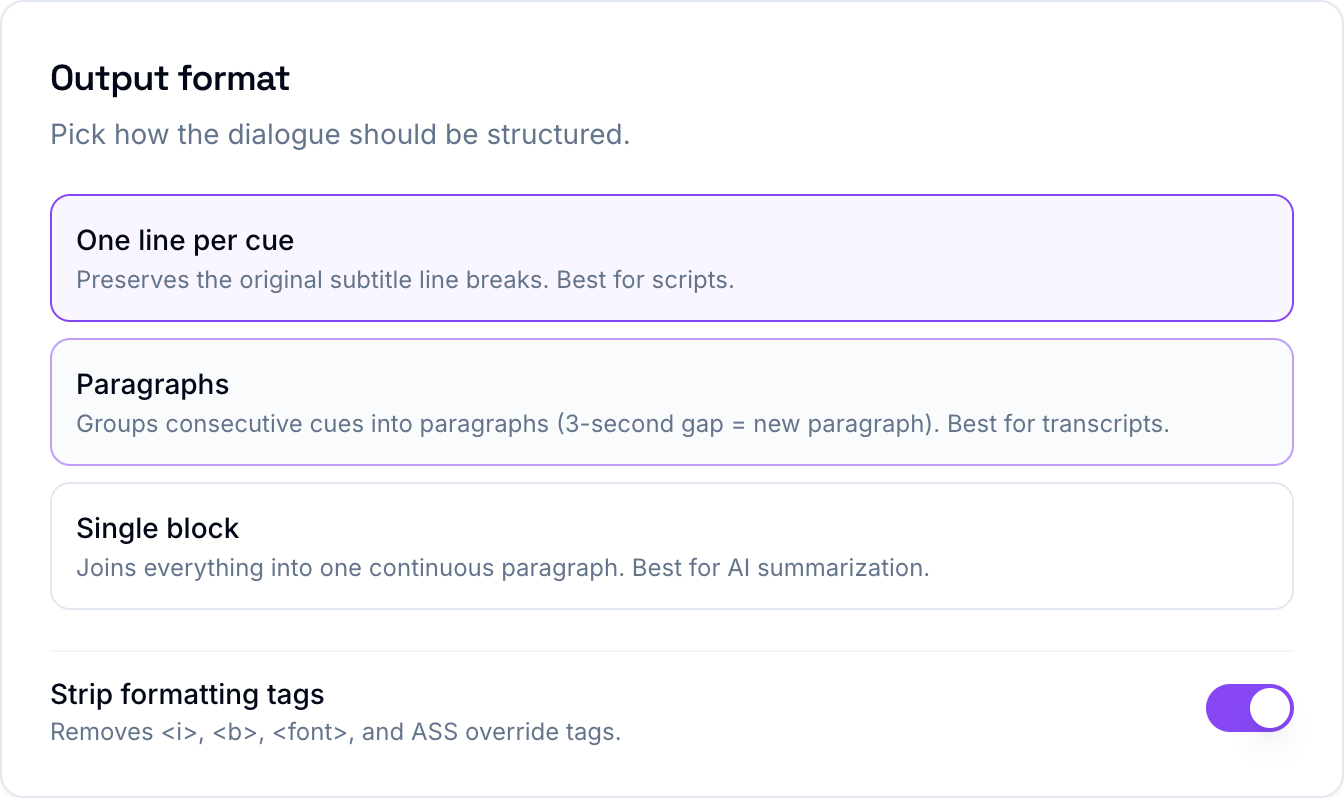
- One line per cue keeps the original subtitle line breaks. Best when you want the structure to match the file, for example a script.
- Paragraphs groups lines that run together into readable paragraphs, breaking where there is a real pause. Best for a transcript a person will read.
- Single block joins everything into one continuous run of text. Best when you are pasting into an AI tool for a summary.
There is also a toggle to strip formatting tags, which removes things like <i> and <b> that sometimes ride along in subtitle files. With that on, you get just the words.
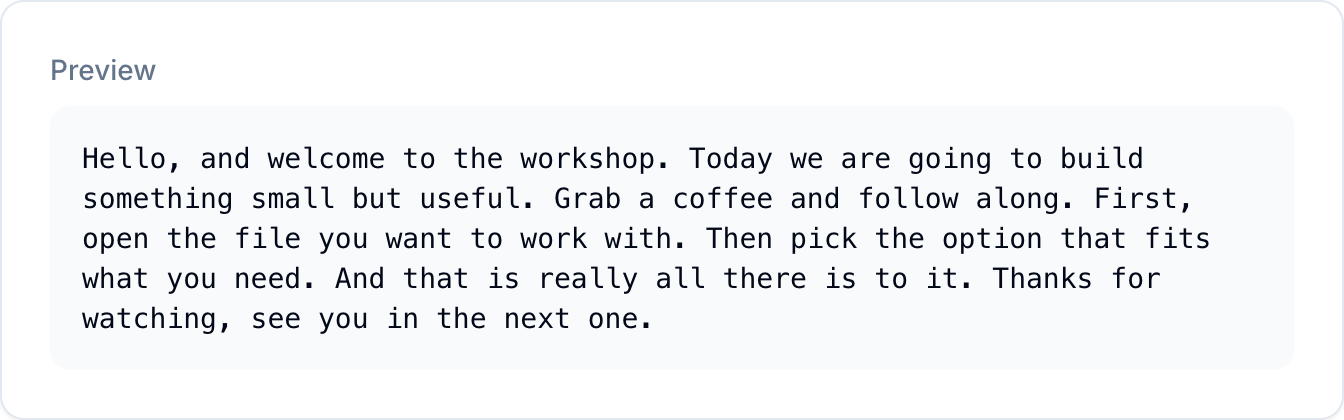
The preview updates as you change the options, so you can see the result before you download anything. The tool also counts the words, characters, and lines, which is handy if you are checking it will fit somewhere.
A note on quality
What you get out is only as good as what went in. Subtitles are written to be read in short bursts on screen, so a transcript made from them can be a little choppy compared to one transcribed from scratch. For most uses, summaries, notes, search, quoting, that is completely fine. If you need a polished transcript for publication, expect to do a light editing pass.
If the text comes out messier than you would like, with stray spacing or odd characters, run it through the Text Cleaner afterward to tidy it up. And if what you actually need is the same subtitles in a different format rather than plain text, use the SRT to VTT Converter instead.
For pulling a clean transcript out of a subtitle file, though, this takes seconds. Upload, pick a format, download. The rest of the free tools are on the TranslationForFree home page.