How to Translate an Excel File Without Breaking Formulas
To translate an Excel file without breaking the formulas, use a tool that edits the .xlsx in place and never sends formulas to the translator at all. The Excel Spreadsheet Translator does exactly that, and it can translate a single column instead of the whole workbook, so your SKU codes, prices, and formulas stay untouched.
You have a spreadsheet to translate. A product catalog, a price list, a survey export, an inventory sheet. The obvious move is to copy the cells, paste them into a translator, and paste the result back. Then you look at what you got: the formulas came back as plain text, the prices turned into dates, and half the columns you pasted back landed one cell off. A spreadsheet punishes copy-paste harder than any document, because most of what is in it was never text to begin with.
And there is a second problem that documents do not have. In a Word file you usually want everything translated. In a spreadsheet you often do not. You want the Description column in Spanish, and you want the SKU codes, the prices, and the formulas to stay exactly as they are. Most translation tools give you no way to say that.
Why spreadsheets break in ordinary translators
An .xlsx file is mostly not words. It is formulas that reference cells by position, numbers with display formats, and a layer of formatting stretched over a grid. The readable text is stored separately from all of that, and each unique piece of text is stored exactly once no matter how many cells show it.
When you copy cells out, everything except the visible text is thrown away. Formulas stop being formulas. A cell showing =D2*E2 becomes whatever number was on screen, and the connection is gone for good. Paste the translation back and you have a sheet that looks alive but no longer calculates anything.
Even tools that accept a whole Excel file usually rebuild it from scratch on the way out, and that is where charts, merged cells, column widths, and number formats quietly disappear.
What you actually want is a tool that opens the workbook properly, changes only the readable text you asked for, and rebuilds nothing else at all.
Translating the workbook
The Excel Spreadsheet Translator works that way. You upload an .xlsx, pick a language, and get back the same workbook with the text translated and everything else untouched. Formulas are never sent to the AI at all, so there is no way for them to come back damaged.
- Open the Excel Spreadsheet Translator.
- Drop your
.xlsxfile in, or click to browse for it. - Pick the language you want under To (leave From on Auto-detect if you are not sure).
- Click Translate Workbook, then download the result.

As soon as the file loads, something useful happens: the tool reads the workbook right in your browser, before anything is uploaded, and shows you every sheet it found.

If you want the whole workbook translated, you are done. Leave everything checked and click Translate. But this panel is where the interesting part lives.
Translating just one column
This is the situation spreadsheets put you in all the time. A product catalog where only the Description column needs to be in Spanish. A survey export where only the free-text answers need translating. A localization sheet where one column per language is the whole point.
Open a sheet’s columns in the panel and you see them listed by their real header names, not just letters. Untick the sheets you want left alone, keep only the columns you need, and flip on Keep header row untranslated if your headers have to match another system.
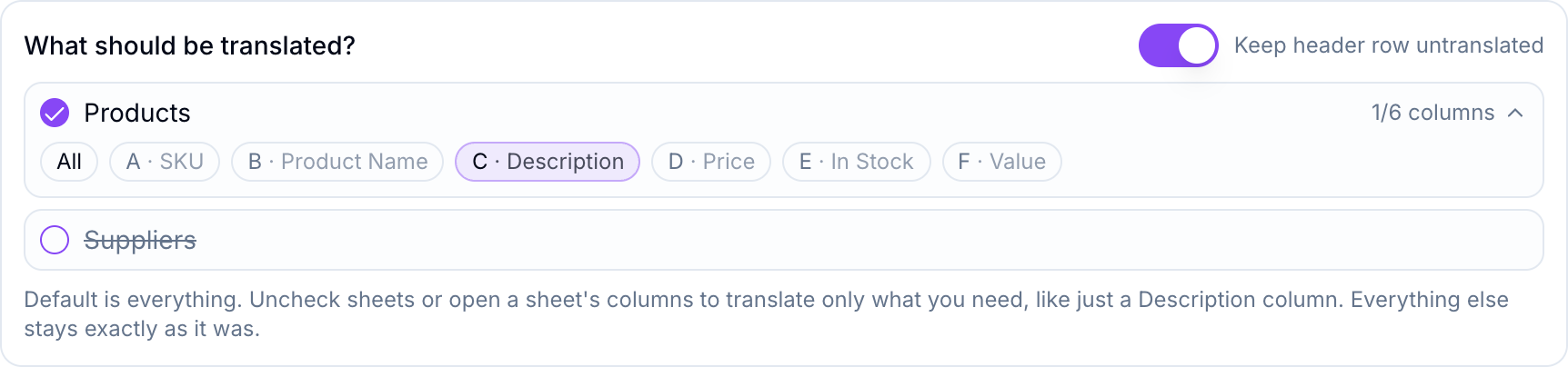
Here only column C, the Description column, will be translated. The SKU codes, product names, prices, stock counts, the Value formulas, and the entire Suppliers sheet stay exactly as they are, byte for byte.
One detail worth knowing: spreadsheets store a repeated word once, even when it appears on many sheets. The tool handles that split for you. A word inside your selection gets translated there, and the copies outside your selection keep their original text. You never have to think about it.

When it finishes you see how many text strings were translated, so you know nothing was skipped, and you download the finished .xlsx. Open it in Excel or Google Sheets and it is your spreadsheet, just in the new language where you asked for it.
What stays untouched
The rule the tool follows is simple: if it is not readable text you selected, it does not change.
It translates the text in the cells you chose, including cells with mixed formatting inside them, and it keeps repeated values consistent everywhere automatically.
It leaves alone every formula, every number, date, and currency with its display format, cell colors and borders, merged cells, column widths, frozen panes, charts, pivot tables, images, and filters. Product codes, URLs, and email addresses are skipped too, so identifiers keep working. Sheet tab names also stay in the original language, on purpose, because formulas refer to sheets by name and renaming them would break those references.
If a formula displays text that was built from translated cells, like a CONCATENATE, Excel recalculates it the moment you open the file, so it catches up on its own.
Tips for a clean result
- Pin your brand and product names with the optional glossary so a term is translated the same way across thousands of rows, or not translated at all. One term per line, like
Acme Cloud = Acme Cloud. - Keep the header row in English when the file feeds another system. Column names like
product_idare often code, not prose. - Pick the right language variant. Latin American Spanish and European Spanish are separate options, and the difference shows in a catalog.
- Save macro-enabled files as a normal .xlsx first. An
.xlsmor an old.xlsis not supported, so use Save As and pick Excel Workbook before you upload.
If your file is a Word document rather than a spreadsheet, we covered that in how to translate a Word document. And if you just need a quick passage translated, plain text translation is one paste away.
For a spreadsheet, though, this is the whole trick: upload, tick what you want translated, download. Formulas intact, formatting intact, free, no signup. The full set of tools is on the TranslationForFree home page.