How to Translate a Word Document and Keep the Formatting
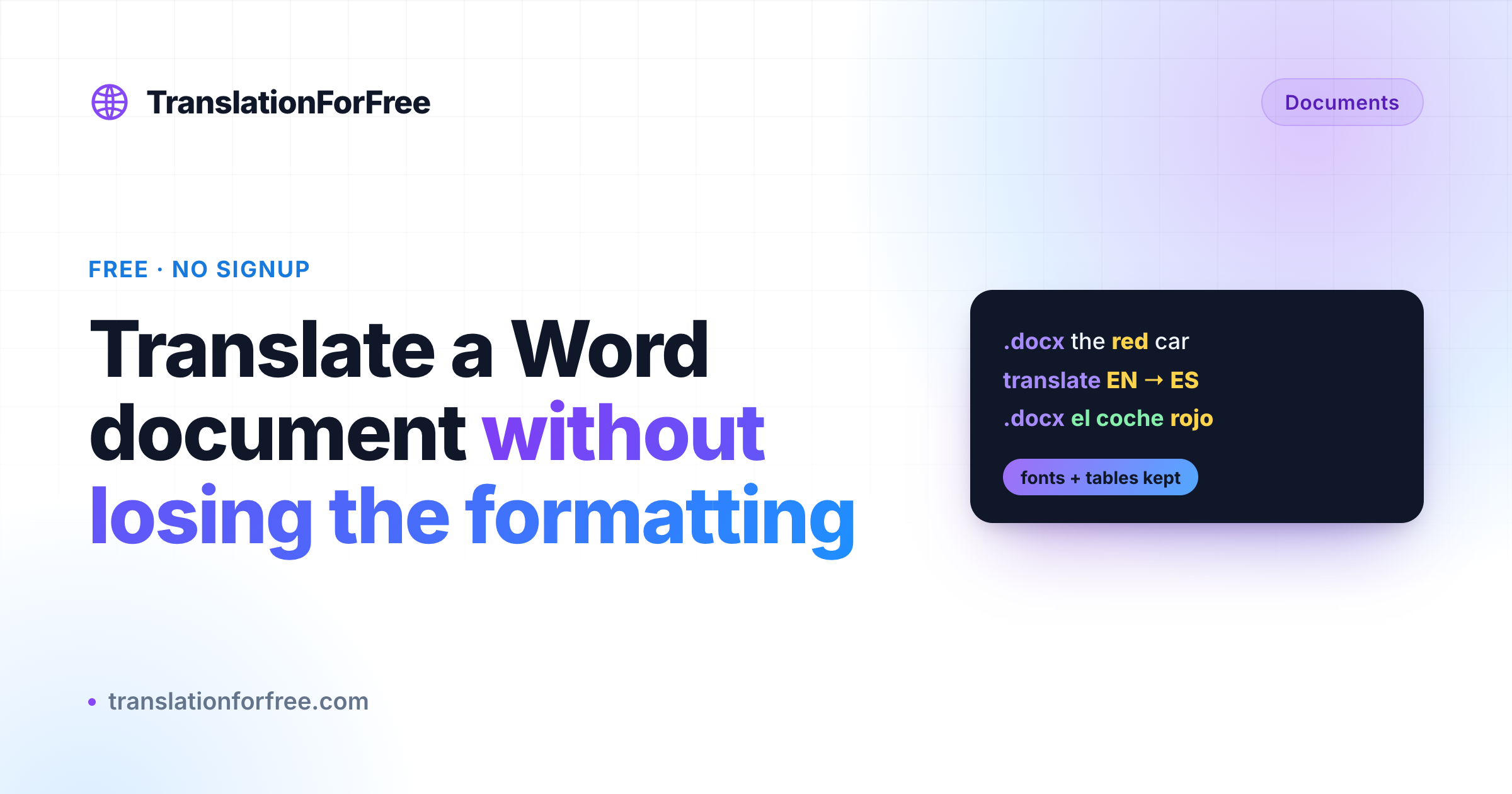
To translate a Word document and keep the formatting, do not copy and paste the text. Upload the .docx to the Word Document Translator, which swaps the words inside the file itself and hands back the same document with every font, table, heading, image, and page break exactly where it was. Free, no signup.
You have a Word document to translate. A report, a contract, a resume, a handout. The obvious move is to open it, copy the text, paste it into a translator, and paste the result back. Then you look at what you got: the headings lost their style, the table collapsed, the bold went to the wrong words, and the clean layout you built is gone. Now you are rebuilding the document by hand, which is most of the work you were trying to avoid.
The problem is not the translation. It is that copy-paste throws away everything except the raw words. Your fonts, colors, tables, and spacing never make it into the translator, so they cannot come back out.
Why copy-paste breaks a .docx
A .docx file is not really a document in the way it looks on screen. It is a small bundle of parts, where the words live in one place and all the formatting lives separately around them. A single sentence gets split into pieces the moment one word is bold or a different color, and each piece carries its own styling.
When you copy the text out, you leave all of that behind. And when a plain translator does get the text, it usually translates word-for-word, so a bolded phrase in English ends up bolding the wrong words in the target language, because the grammar moved the emphasis somewhere else. Converting the file to another format first and back does not help either, because every conversion drops a little more of the original styling.
What you actually want is a tool that opens the document properly, changes only the readable text, and leaves every font, color, and table exactly where it was.
Translating the document
The Word Document Translator does exactly that. You upload a .docx, pick a language, and get back the same document in the new language with the formatting untouched. All the work happens on the server, and nothing about your file’s layout is rebuilt from a lossy copy.
- Open the Word Document Translator.
- Drop your
.docxfile in, or click to browse for it. - Pick the language you want under To (leave From on Auto-detect if you are not sure).
- Click Translate Document, then download the result.
Once the file loads, you get a compact control row: the source and target language, the file you picked, and an optional glossary you can skip for now. Leaving the source on Auto-detect is fine, since the tool figures out the original language on its own.
When it finishes, you get a short confirmation with the number of paragraphs translated, so you can see nothing was skipped, and a download button for the finished .docx. Open it in Word or Google Docs and it looks like the original, just in the new language. The headings are still headings, the table is still a table, the bold is on the right words, and the header and footer came along too.
What gets translated, and what stays untouched
The tool is careful about the line between content and formatting.
It translates the body text, headings, and lists, every cell in your tables, and the text in headers and footers. Bold and emphasized words are repositioned to fit the grammar of the target language, so the result reads naturally instead of word-for-word.
It leaves alone everything that makes the document look the way it does: all fonts, colors, sizes, bold, italic, and underline, your paragraph styles, tables, images, page layout, and section breaks. It also skips URLs and email addresses so your links keep working, while numbers like a total are localized to the target language’s format when that is the natural thing to do.
That split is the whole point. The reader gets a fully translated document, and your formatting comes out exactly as it went in.
Tips for a clean result
- Pin your brand and product names with the optional glossary so they stay consistent instead of getting translated on some lines and not others. One term per line, like
Acme Corp = Acme Corp. - Pick a specific language variant when it matters. Latin American Spanish and European Spanish are separate options, and choosing the right one gets you the right tone.
- Save macro-enabled files as a normal .docx first. A
.docmis not supported, so use Save As and pick Word Document before you upload.
If what you have is a web page rather than a Word file, we covered that in how to translate an HTML file. And if you only want the words rather than the document, you can translate it as plain text instead.
For translating a Word document while keeping its formatting intact, though, this is the short version: upload, pick a language, download. Every tool is free and needs no signup, and the full set is on the TranslationForFree home page.