Why Your Video Player Rejects Your Subtitle File
A browser video player will refuse an .srt file, and plenty of desktop players will not read a .vtt. The two formats hold the same cues and the same timings. They differ in a header line, a comma versus a period in the timecodes, and whether cues are numbered. Here is why that small gap trips players up, and how to give each one the format it expects.
You have a subtitle file in one format, but the thing you are using wants the other. A web video player asks for .vtt, but the file you downloaded is .srt. Or your desktop video player only likes .srt, and the captions you have are .vtt. The words are the same. The timings are the same. It is just the wrapper that is wrong.
The good news is that SRT and VTT are close cousins. Converting between them is a quick, lossless swap, and you do not need to install anything to do it.
Just need the file converted? Go straight to the Convert SRT to VTT tool, drop your file in, and download the result. The rest of this post explains what is actually changing and when you need each format.
SRT and VTT, in one minute
SRT (SubRip) is the most common subtitle format. Almost every desktop video player, media server, and editing tool reads it. VTT (WebVTT) is the format the web uses. The HTML5 <track> element, YouTube, and most browser-based players expect VTT.
The two formats hold the same thing: a list of cues, each with a start time, an end time, and a line or two of text. The differences are small. VTT starts with a WEBVTT header line, and it writes its timecodes with a period before the milliseconds (00:00:04.500) where SRT uses a comma (00:00:04,500). That is most of it. If you want the full breakdown, we covered it in SRT vs VTT: subtitle formats explained.
Because the two are so close, converting one to the other does not touch your timing or your text. It just rewrites the format.
Converting a file
The SRT to VTT Converter does this both ways. Drop in an SRT and it gives you a VTT. Drop in a VTT and it gives you an SRT. Everything happens in your browser, so the file never leaves your device.

- Open the SRT to VTT Converter.
- Upload your
.srtor.vttfile. - The tool detects the format and shows you which way it will convert.
- Click convert, then download the result.
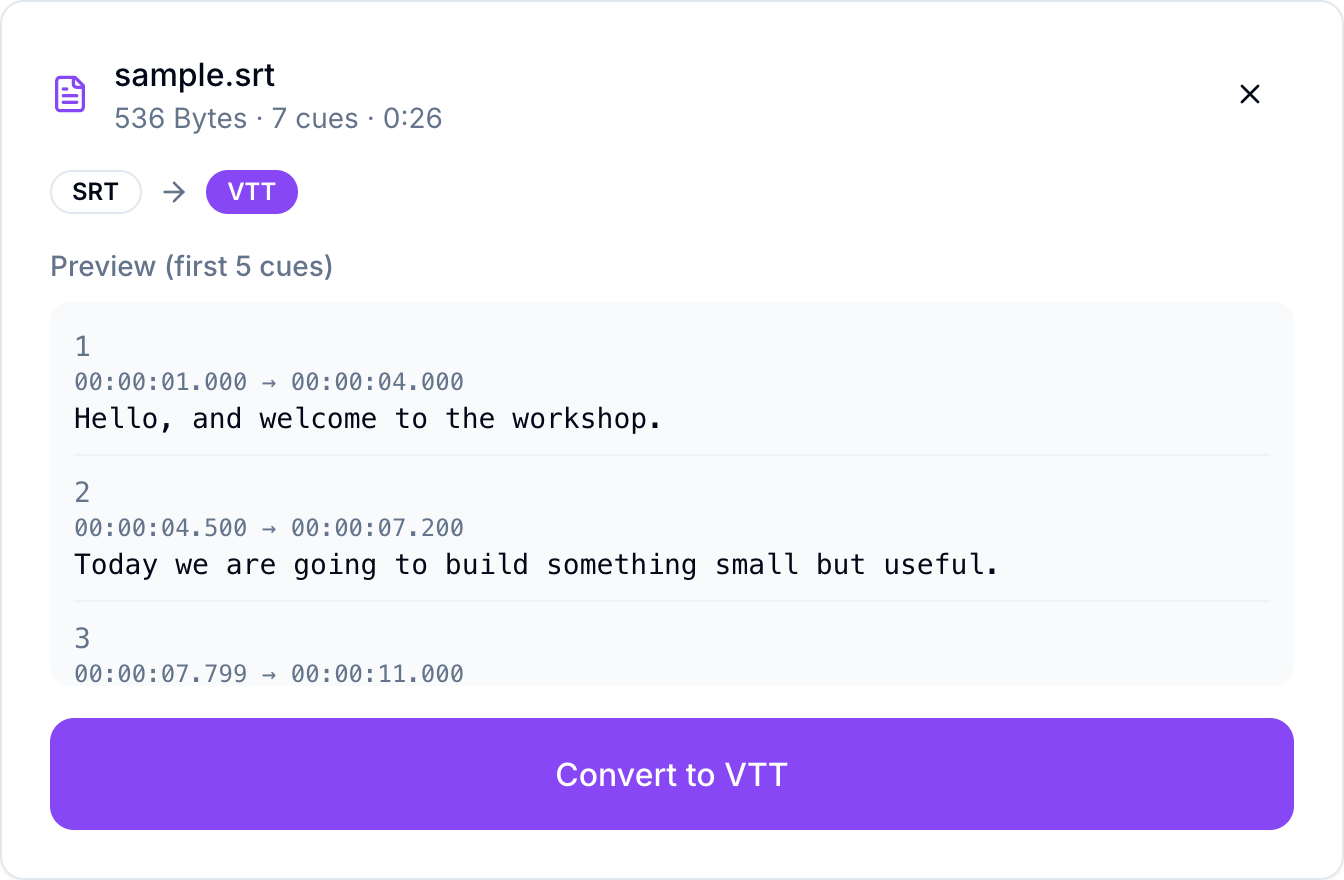
When the file loads, the converter reads it, shows you the conversion direction, and previews the first few cues so you can confirm it parsed correctly before you do anything.
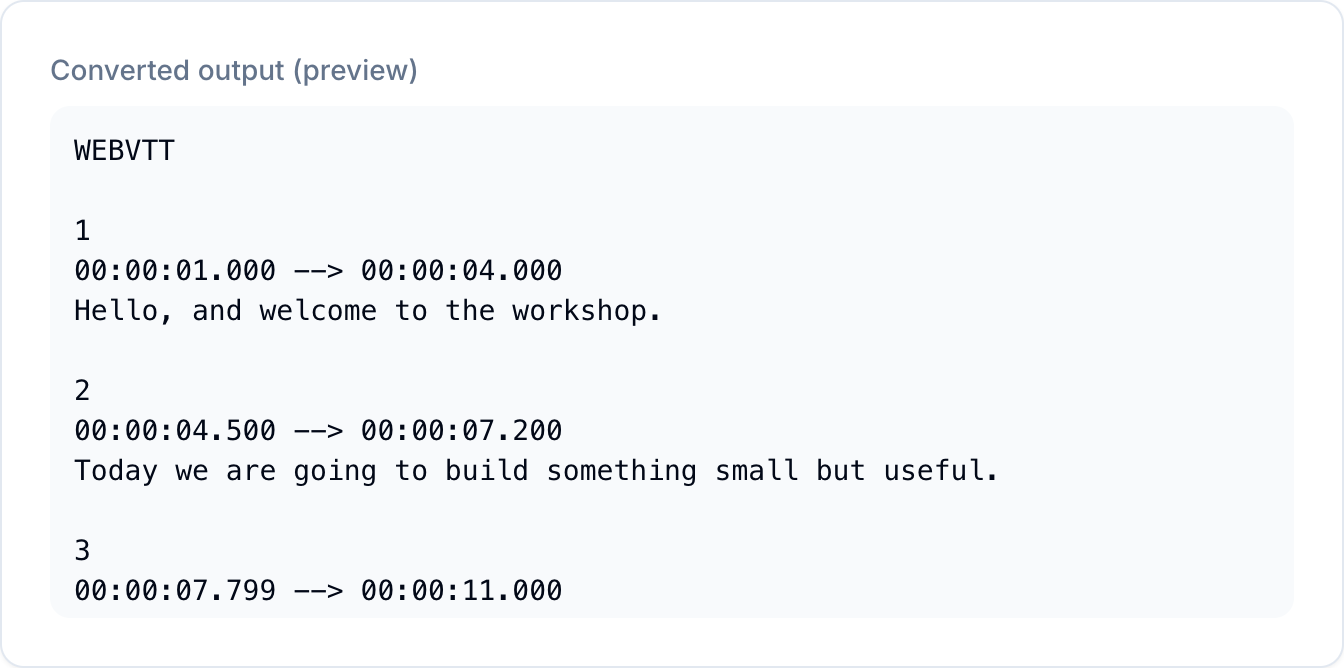
Press the convert button and you get the output in the new format, ready to download or copy. Notice that the timecodes are identical, just written the way the new format expects, and the WEBVTT header is added at the top.
Which way do you need to go?
SRT to VTT is what you want when you are putting a video on a website. The HTML5 <track> tag and browser-based players need VTT, so if you are adding captions to a <video> element, convert your SRT first.
VTT to SRT is what you want when you are going the other direction, into a desktop player, a media server like Plex or Jellyfin, or a video editor. Many of these tools prefer SRT, and some older ones do not read VTT at all.
A couple of things to know
The conversion keeps your timings exactly, so a converted file stays in sync with the same video the original was made for. If your subtitles were already out of sync before converting, they will still be out of sync after, because the timing values do not change. That is a separate problem, and the Subtitle Timing Shifter is the tool for it.
If all you actually need is the spoken text without any of the timing, you do not want a format conversion at all. You want to extract the text from the subtitles into a plain transcript.
For the format swap itself, though, this is about as simple as it gets. Upload, convert, download. The full set of subtitle tools, all free and with no signup, is on the TranslationForFree home page.