Transliteration vs Translation: What Is the Difference?
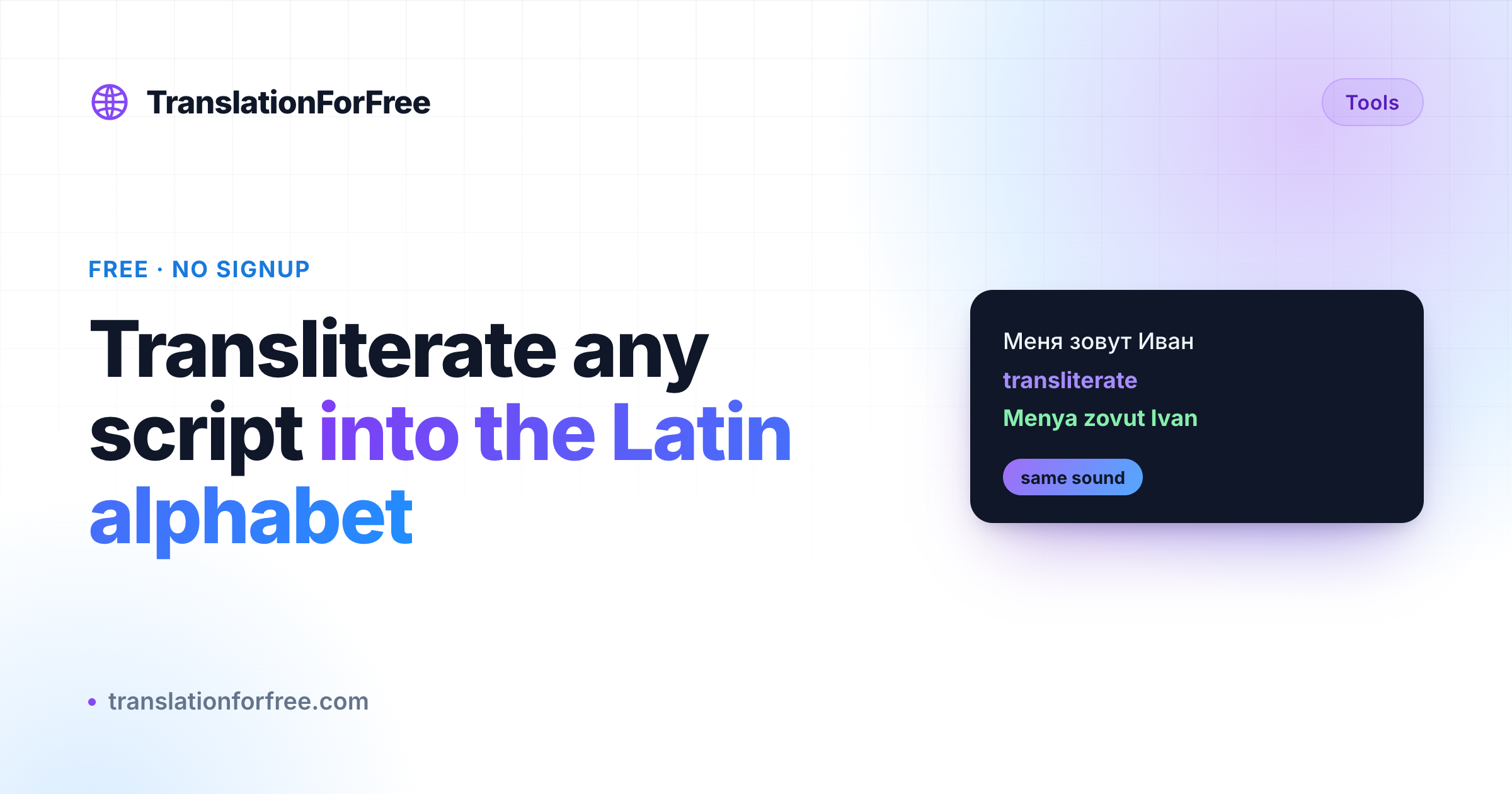
Transliteration and translation do different jobs. Transliteration rewrites text in another alphabet while keeping how it sounds, so the Hindi नमस्ते becomes Namaste. Translation replaces it with a word that means the same thing, which would give you hello instead. You want transliteration for names and pronunciation, and translation for meaning.
You have a name or a phrase written in one alphabet, and you need it in another. A Russian name for an English form. A Hindi word spelled out so an English speaker can say it. A Greek menu item written the way it sounds. You do not want to change the meaning. You want to keep the sound and just swap the letters.
That is transliteration, and it is a different job from translation.
Just need something transliterated? Go straight to the Transliterate Text tool, paste it in, and pick your scripts. The rest of this post explains how transliteration differs from translation and when you want each.
Transliteration is not translation
This trips people up, so it is worth being clear. Translation changes the meaning from one language to another. Transliteration changes the script while keeping the pronunciation.
Take the Russian phrase “Меня зовут Иван.” Translated into English, it means “My name is Ivan.” Transliterated into the Latin alphabet, it becomes “Menya zovut Ivan,” which is not English at all. It is still Russian, just written in letters an English reader can sound out.
You want transliteration when the goal is to write a word so someone can pronounce it or type it, not to understand what it means.
Transliterating a phrase
The Transliteration tool handles this across a wide range of scripts, including Cyrillic, Arabic, Hindi and other Indic scripts, Chinese, Japanese, Korean, Greek, Hebrew, Thai, and more. It is powered by AI, so it reads context rather than swapping letter for letter mechanically.
- Open the Transliteration tool.
- Type or paste your text.
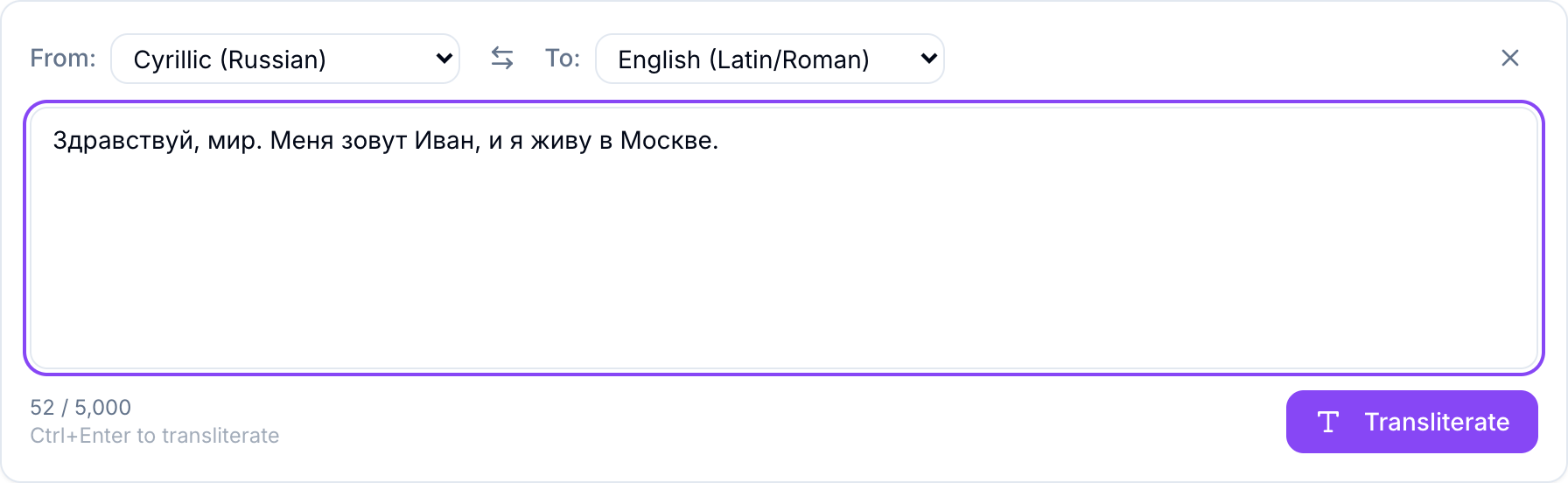
- Pick the script you are coming from and the one you want, or use a quick preset.
- Press transliterate, then copy the result.
You can set the source script yourself, or leave it on auto-detect and let the tool work out what it is. The presets along the top cover the common pairs, like Russian to Roman or Hindi to Roman, so you can set both sides in one click.

The result keeps the pronunciation intact. “Меня зовут Иван, и я живу в Москве” comes back as “Menya zovut Ivan, i ya zhivu v Moskve,” ready to drop into a form, a document, or a message.
Where this comes in handy
- Names on official documents. Writing a name from a non-Latin script onto a passport, visa form, or application.
- Learning pronunciation. Seeing how a foreign word actually sounds before you try to say it.
- Typing without the keyboard. Getting text into your language when you only have a Latin keyboard in front of you.
- Lyrics and quotes. Writing song lyrics or a phrase the way it sounds for people who do not read the original script.
- URL slugs. Turning a non-Latin title into something usable in a web address.
One caution for official use
Because the tool is AI-powered, it is very good but not infallible, and some names have an official spelling that does not match the most natural transliteration. If you are filling in a legal document, check the result against any spelling that already appears on your existing paperwork, and use that if it differs. For everyday use, the output is ready to go as is.
If what you actually need is the meaning rather than the spelling, you want the Text Translator instead. And there is a shortcut for that built right in: after transliterating, you can send the text straight to the translator with one click.
For getting a word from one alphabet into another, this is the quick path. Type, pick your scripts, transliterate. The rest of the free tools are on the TranslationForFree home page.