How to Translate a PowerPoint and Keep the Formatting

To translate a PowerPoint and keep the formatting, upload the .pptx to the PowerPoint Translator. It replaces the text inside the file and returns the same deck with every layout, theme, table, image, and speaker note in place, so there is nothing to rebuild afterward.
Nobody minds translating a presentation. What people mind is rebuilding it afterward.
You copy the text off slide one, paste it into a translator, paste the result back into the box, and the line wraps differently so the title now takes two lines and pushes into the image. Then you do that again for slide two. By slide fourteen you are not translating a deck anymore, you are rebuilding one, and you still have not touched the speaker notes.
The deck is the problem. A .pptx is not a document with text in it, it is a pile of positioned boxes, each holding text with its own font, size, and color, sitting on a theme, sometimes inside a table, with a notes page attached underneath. The words are maybe five percent of the file. Everything else is layout, and layout is exactly what a copy-paste workflow destroys.
Why the usual routes do not work
Google Slides has no translate button. You can upload a .pptx, but you will be doing the same copy-paste dance inside a different editor, and the import may shift your fonts before you even start.
Translating a PDF export gives you a PDF. It reads fine, but you cannot present from it, you cannot edit a typo, and you have thrown away the deck.
Most “presentation translator” tools rebuild the file. They read your text, generate a new deck, and hand it back. The words are right and the deck is not yours anymore: theme colors drift, master layouts collapse, and speaker notes are usually dropped without a word about it.
What you actually want is boring and specific: the same file, the same boxes, the same theme, with different words inside.
Translating the deck
The PowerPoint Translator works inside the file. It swaps the text where it already sits and leaves everything around it untouched, so what you download is your deck, not a copy of it.
- Open the PowerPoint Translator.
- Drop your
.pptxin, or click to browse for it. - Pick the language you want under To (leave From on Auto-detect if you are not sure).
- Click Translate Presentation and download the result.

Before translating, it is worth opening the glossary box. A deck is full of words that should not be translated, or that must be translated one specific way: the product name, the internal term everyone uses, the job title that has an official equivalent. One term per line and they stay locked across every slide in the deck.

When it finishes you get a count of how many text blocks were translated, so nothing quietly went missing.

What the result actually looks like
Counts are easy to claim, so here is the same slide from the deck above, before and after, rendered from the real files rather than described:
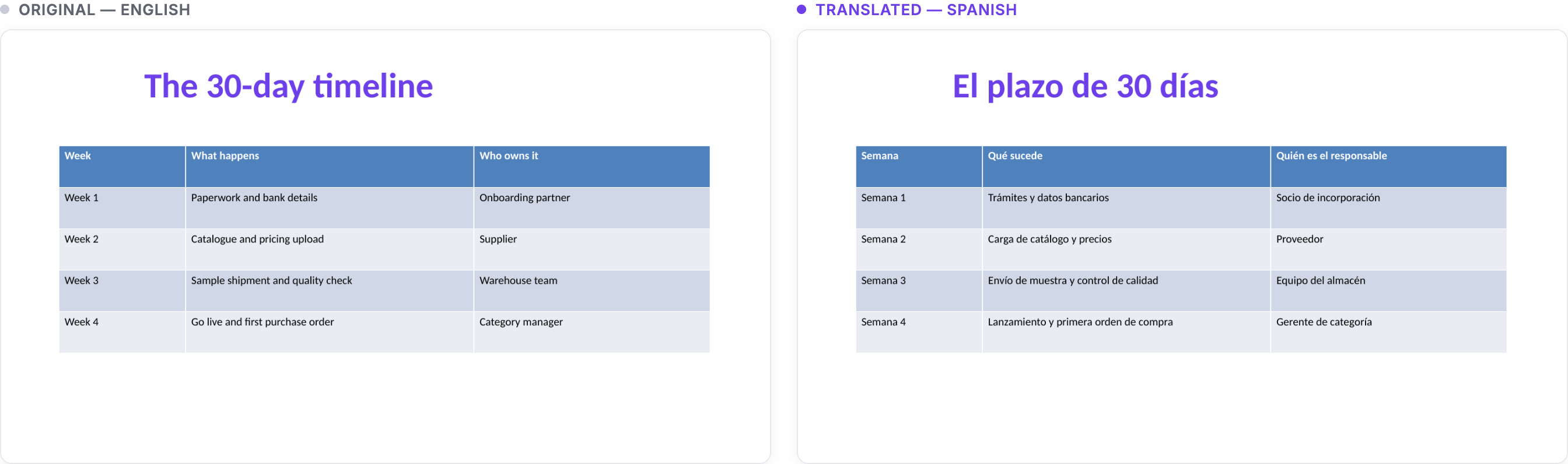
The table did not move. Same column widths, same header row in the same blue, same alternating row shading, same title in the same purple at the same size. The only thing that changed is the language. And “orden de compra” in the last row is the glossary doing its job, because left alone a translator will happily pick a different phrase for “purchase order” on every slide it appears.
What gets translated
- Every slide: titles, body text, bullets, and text boxes
- Tables, cell by cell
- Grouped shapes, so a diagram built from real shapes comes through
- Speaker notes under each slide, which is usually the part other tools skip
What stays untouched
- Your theme, master layouts, fonts, colors, and slide dimensions
- Images, charts, and shape positions
- Animations and slide transitions
- URLs, email addresses, numbers, and slide-number fields
The text expansion problem, handled honestly
Here is the thing most tools do not tell you: translations change length. German runs roughly a third longer than English. Spanish and French are not far behind. A title that fitted its box in English can genuinely not fit in German, and no amount of clever engineering makes text shorter than it is.
So the translator does two things. Where PowerPoint allows it, it gently reduces the font size to keep the text inside its box, the same thing you would do by hand. And where it cannot, because the deck disables shrinking on that box or because fitting the text would make it too small to read, it tells you which slide to look at instead of pretending everything is fine.
That second part matters. A tool that silently overflows your text is worse than one that says “check slide 7,” because you will find out in front of an audience.
Two things it does not do yet
Text inside SmartArt and charts is left alone. It stays exactly as it was, so nothing breaks and nothing shifts, but those pieces need editing by hand. If your deck leans heavily on SmartArt, budget a few minutes for it.
Placeholder text in slide masters is skipped on purpose. That is the text you only see in the master editor, and translating it tends to cause more surprises than it solves.
Tips for a deck you can present
- Use the glossary for product and team names. A deck repeats its vocabulary constantly, and inconsistency is more noticeable than an imperfect phrase.
- Pick a specific target variant when tone matters. Latin American and European Spanish are separate options, and a sales deck reads differently in each.
- Skim the slides it flags before presenting, not the whole deck. That is the whole point of it telling you.
- Check your notes page if you present from notes. They are translated too, which is easy to forget.
- Save macro-enabled decks as a normal
.pptxfirst.
If the content you need translated lives somewhere other than a deck, the Word and Excel translators keep their formatting exact the same way, the PDF translator handles scanned files with OCR, and there is a plain text translator for everything else.
All of them are free, with no signup, on the TranslationForFree home page.