How to Clean Up Text Copied from a PDF
To clean up text copied from a PDF, paste it into the Text Cleaner. It strips the stray page numbers, joins the broken line breaks back into paragraphs, and collapses the double spaces in one pass. Free, no signup.
Copying text out of a PDF almost never comes out clean. You paste it expecting a paragraph and you get page numbers floating in the middle, a line break after every line instead of every paragraph, double spaces everywhere, footnote markers stuck to words, and the occasional ’ where an apostrophe used to be. The words are right. The shape is a mess.
Fixing that by hand is slow and easy to get wrong. You can clean it all up at once instead.
Why PDF text comes out broken
A PDF does not really store paragraphs. It stores characters at positions on a page. When you copy, the text comes along with the artifacts of that layout: the line breaks that matched the column width, the page numbers and headers that were part of the page, and any character encoding quirks from how the file was made. Scanned PDFs run through OCR add their own noise on top.
None of that is content. It is leftover formatting, and it is exactly what a cleaner is built to strip.
Cleaning it up
The Text Cleaner handles all of this. It runs entirely in your browser, so nothing you paste is ever uploaded anywhere. The fastest way in is a preset, which switches on the right set of fixes for a common situation.

- Open the Text Cleaner.
- Paste your messy text.
- Click the Clean OCR / PDF text preset.
- Copy the cleaned result or download it as a
.txtfile.
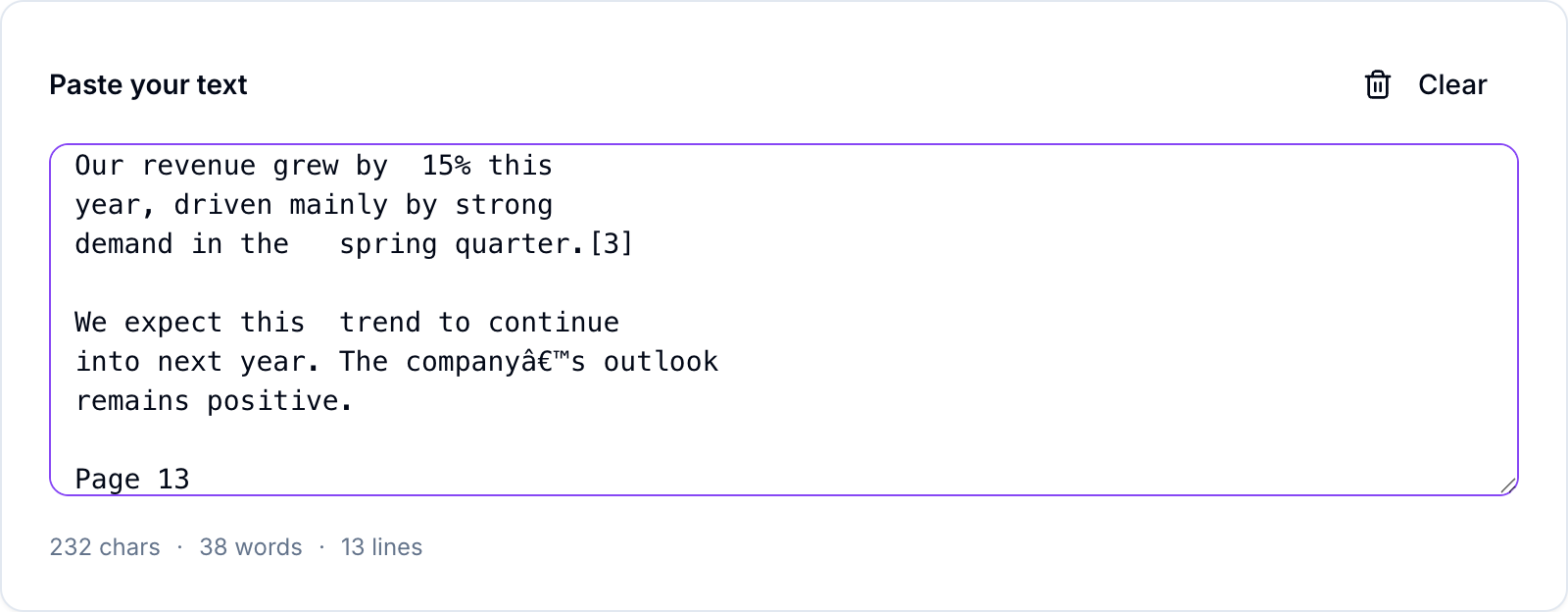
Paste your text into the box and you can see the raw mess, along with a count of the characters, words, and lines you started with.
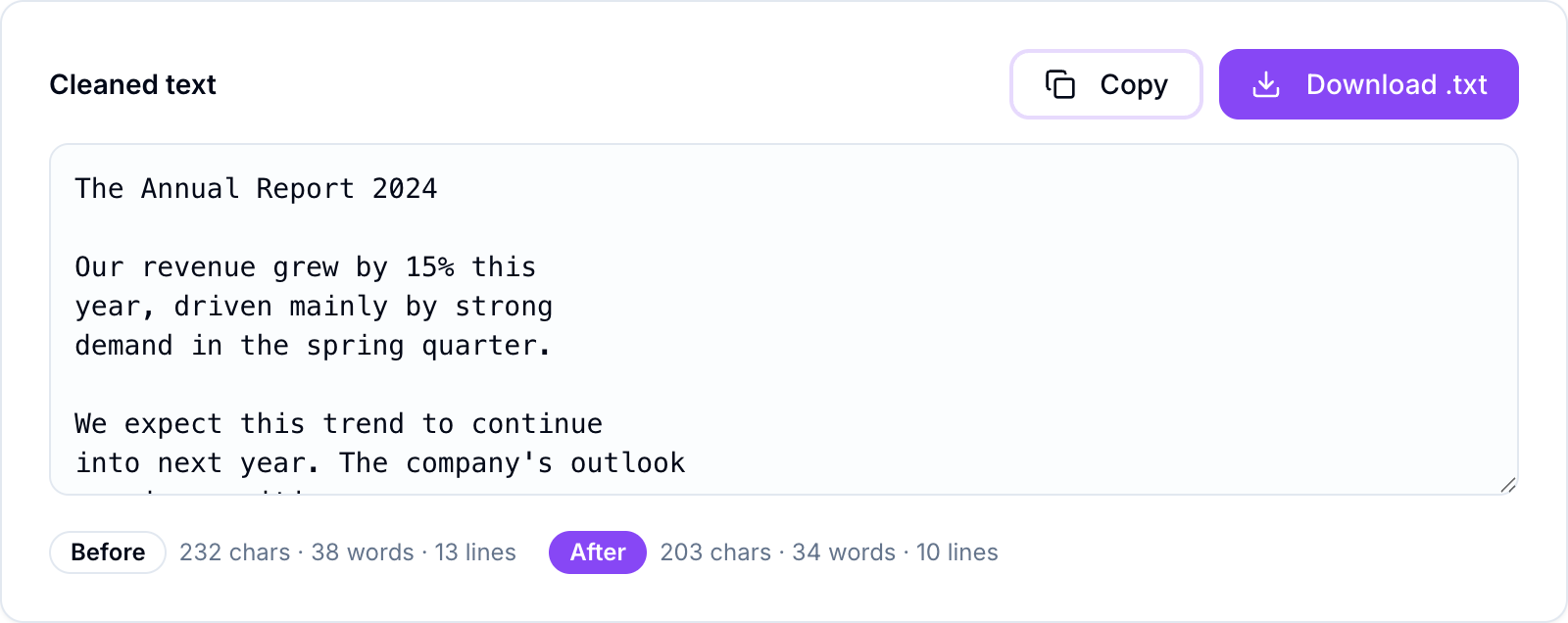
The moment you apply the preset, the cleaned version appears next to it. Page-number lines are gone, the runs of double spaces are collapsed to one, the footnote marker is stripped, and the ’ mojibake is fixed back into a normal apostrophe. The before and after counts show you exactly how much came out.
The presets are just starting points. Below them is a full set of individual toggles, grouped into whitespace, pattern removal, and encoding fixes, so you can switch specific things on or off. If you want to remove URLs, drop duplicate lines, or normalize curly quotes to straight ones, those are one checkbox each.
The common situations
- Pasted from a PDF or a book. Page numbers, headers, and stray spacing are the usual suspects. The PDF preset clears them in one move.
- Preparing input for ChatGPT or Claude. Footnote markers and broken characters waste the model’s attention. There is a Prepare for ChatGPT preset for exactly this.
- Cleaning OCR output. Scanned text comes with double spaces, broken paragraphs, and odd markers. The pattern-removal toggles handle most of it.
One toggle to use with care is “remove all line breaks,” which joins everything into a single paragraph. That is great for pasting into a chat box and wrong for anything where the paragraph structure matters, so check the preview before you rely on it.
If the text you are cleaning came out of a subtitle file, you may not even need to clean it after the fact. The SRT to Text Extractor can produce tidy text directly. And once your text is clean, if the next step is another language, the Text Translator is one click away.
For turning a pasted mess into something usable, though, this is a few seconds of work. Paste, pick a preset, copy. The rest of the free tools are on the TranslationForFree home page.